File preparation
Learn how to set up a business card in Adobe Illustrator, read about building bleed into your design, orientation for second-side printing, and other important topics for success with the Brandly portal.
How to setup business card document in Adobe Illustrator
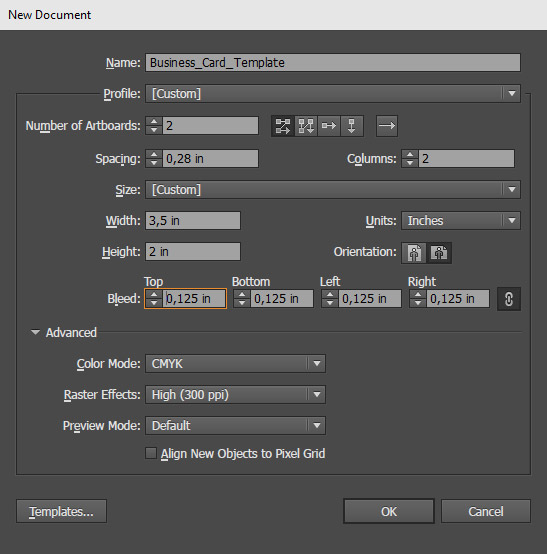
Build bleed into your design
The bleed is an area that gets printed beyond the trim edge of the business card to avoid white lines when we trim it. If your business card contains a background color or graphics that extend to the edges, make sure to add a 1/8 inch bleed beyond the trim. For a more in depth look at understanding the bleed in printing, click here to watch a video.
 Bleed Area: 3.75” x 2.25”
Make sure your background extends to fill the bleed area (to avoid nasty white edges!)
 Trim: 3.5” x 2.0”
This is where we aim to cut your cards.
 Safe Area: 3.34” x 1.84”
Make sure important aspects of your design (like text and logos) are inside the safe area.
 Live Text
Prepare your file so that the fields you want to edit for each employee (e.g. name, title, phone, email) are live text. Live text is simply text that is not converted to outlines in Adobe Illustrator. Additionally, consider using text that is 8pt or higher for better results.
 No Crop Marks
Crop marks are typically added by the printer during the production process, so there's no need to include them in your file. Removing crop marks helps prevent any confusion during the printing process.
 CMYK colors
Preparing your files in CMYK mode is crucial for achieving the best color accuracy when printing. CMYK represents the four ink colors (Cyan, Magenta, Yellow, and Key/Black) used in the printing process, as opposed to RGB, which is used for digital displays.
 Second Sides
Many designs take advantage of the reverse side of the card. Brandly does not charge extra for second side printing so if you want to include a backside, send a file along. And if there is any question about the orientation of the backside to the front side, follow this orientation guide.
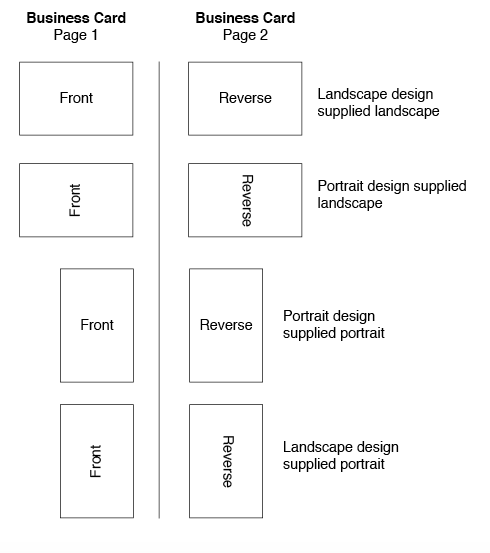 Orientation guide
 Save your files as a PDF
One of the most important reasons to use the PDF format for printing is that it preserves formatting. Formatting is the way that text and images are arranged on a page, and it is crucial for making sure that the printed outcome matches your design.
File preparation
-
Learn how to set up a business card in Adobe Illustrator, read about building bleed into your design, orientation for second-side printing, and other important topics for success with the Brandly portal.
function link() { [native code] }